
If you have worked with Oracle GoldenGate for a while, you probably know how much information can end up inside a trail file. Inserts, updates, deletes and, depending on what you are replicating, potentially some data you definitely don’t want someone casually reading from the filesystem.
We normally spend quite a bit of time securing database connections, configuring HTTPS between GoldenGate deployments, managing credentials and generally making sure nobody can get where they shouldn’t.
But then there are the trail files.
And those files contain the actual data GoldenGate is moving around.
Fortunately, Oracle GoldenGate can encrypt trail files at rest, and there are several ways to manage the encryption keys behind that process.
In GoldenGate 26ai, we can use:
- a Local Wallet
- Oracle Key Vault (OKV)
- OCI Key Management Service (KMS)
- a third-party encryption profile through the Plugin Service
I’m not going to cover all of them here. Otherwise, what started as a blog post will eventually become a small book, and nobody asked for that.
Instead, this will be the first article in a series about GoldenGate trail encryption.
We’ll start with the simplest option: Local Wallet encryption.
More importantly, we’re not only going to configure it. We’ll look at how the encryption actually works, encrypt a trail, replicate it between two GoldenGate deployments, verify that the trail is really encrypted, and see what happens when GoldenGate doesn’t have access to the key required to decrypt it.
Because seeing RUNNING in the GoldenGate console is nice, but I would still like some evidence.
How does Oracle GoldenGate Trail Encryption actually work?
Before creating wallets and changing Extract parameters, it is worth understanding what GoldenGate is actually doing behind the scenes.
When we say that a GoldenGate trail is encrypted using a master key, it is easy to assume that the master key is simply used to encrypt all the data written to the trail.
That is not exactly what happens.
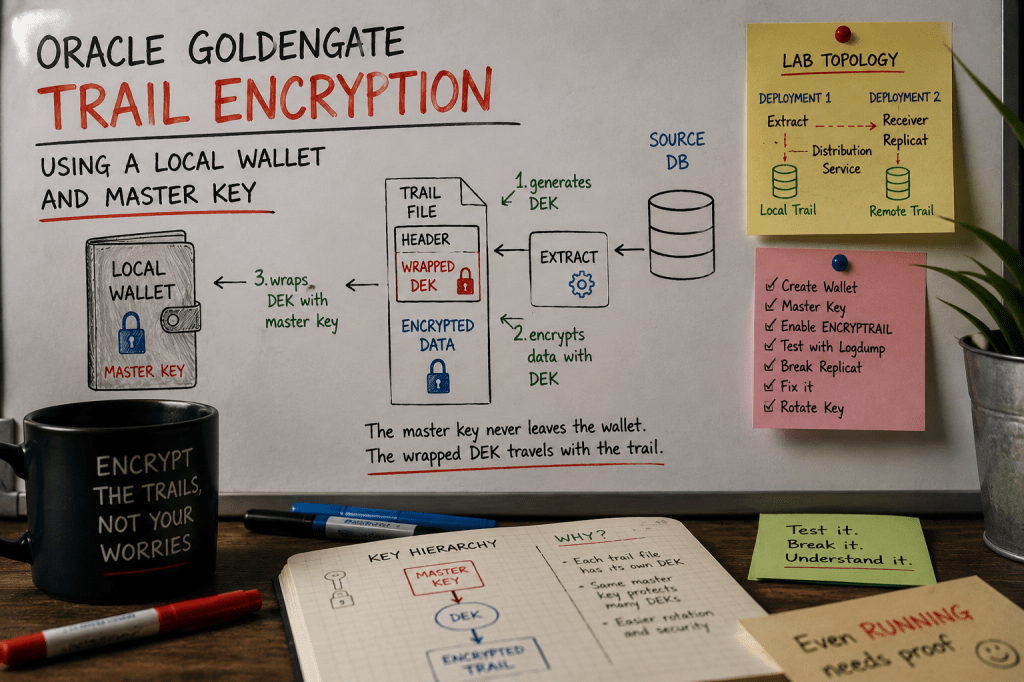
GoldenGate uses a two-level key hierarchy.
For every trail file, GoldenGate generates a Data Encryption Key (DEK). This is the key that actually encrypts the data stored in the trail.
The DEK itself then needs to be protected. This is where the master key comes into play.
The master key is used to encrypt, or wrap, the DEK, and the wrapped DEK is stored in the trail file header. The master key, meanwhile, is stored securely in the GoldenGate wallet.
Conceptually, it looks something like this:
Trail file│├── Header│ └── Wrapped DEK│└── Encrypted data ▲ │ DEK ▲ │ unwrap │Master Key <--- DOES NOT travel inside the trail ▲ │Local Wallet
Why the extra key?
One nice consequence of this design is that GoldenGate does not need to encrypt every trail file directly with the same master key. Each trail file gets its own DEK, while the master key is used to protect those keys.
When GoldenGate needs to read an encrypted trail, it essentially performs the process in reverse. It reads the encrypted DEK from the trail header, uses the appropriate master key to decrypt it, and then uses the resulting DEK to decrypt the trail records.
And this also explains something important for our lab.
Having the encrypted trail file alone is not enough to read its contents. The process consuming that trail must also have access to the encryption profile and the corresponding master key.
That is exactly what we are going to test later.
Encryption Profiles
If you have worked with older GoldenGate releases, some of the terminology in current releases may look a little different.
GoldenGate 26ai uses encryption profiles to define how encryption keys are managed.
Think of an encryption profile as the connection between a GoldenGate process and the mechanism responsible for managing its encryption keys. The profile contains the information GoldenGate needs to work with the selected key management provider.
For this first article, that provider will be a Local Wallet, keeping the key management within the GoldenGate environment itself.
This makes it a good starting point to understand how trail encryption works before bringing external key management systems into the picture.
Later in this series (that’s my goal, at least), we’ll replace the Local Wallet with the other options and see what changes, so make sure to follow the blog!😊
Oracle GoldenGate Trail Encryption Lab
For the tests, I will use two Oracle GoldenGate deployments with unidirectional replication.
The flow is intentionally simple:
        OGG Deployment 1                         OGG Deployment 2

     +--------------------+                   +--------------------+
     |                    |                   |                    |
DB ->| Extract            |                   | Receiver           |
     |    |               |                   |    |               |
     |    v               |      HTTPS        |    v               |
     | Local Trail -------+------------------>| Remote Trail       |
     |                    | Distribution      |    |               |
     |                    | Path              |    v               |
     |                    |                   | Replicat ----------+--> TARGET
     +--------------------+                   +--------------------+
The Distribution Service on Deployment 1 reads the local trail and sends it to the Receiver Service on Deployment 2, where the remote trail is created.
The important part for this article is not really the database replication itself. We just need enough activity to generate some trail records.
What we care about is what happens between Extract and Replicat.
We are going to:
- Create a Local Wallet encryption profile.
- Generate a master key.
- Configure Extract to write encrypted trails.
- Send those trails to the second GoldenGate deployment.
- Configure Replicat to decrypt them.
- Verify that replication still works.
- Open the trails ourselves and confirm that they really are encrypted.
- Finally, break a few things on purpose and see what happens when the required encryption keys are not available.
That last part is usually where things get more interesting.
Anyone can follow a configuration guide until everything turns green. I also want to know what happens when it doesn’t.
Setting Up the Local Wallet
Now that we know what we are trying to protect, let’s start configuring it.
The good news is that there isn’t much to configure to start using a Local Wallet. In fact, GoldenGate already provides a Local Wallet encryption profile by default for each deployment.
We can see it from the Administration Service by navigating to:
Administration Service → Encryption → Local Wallet
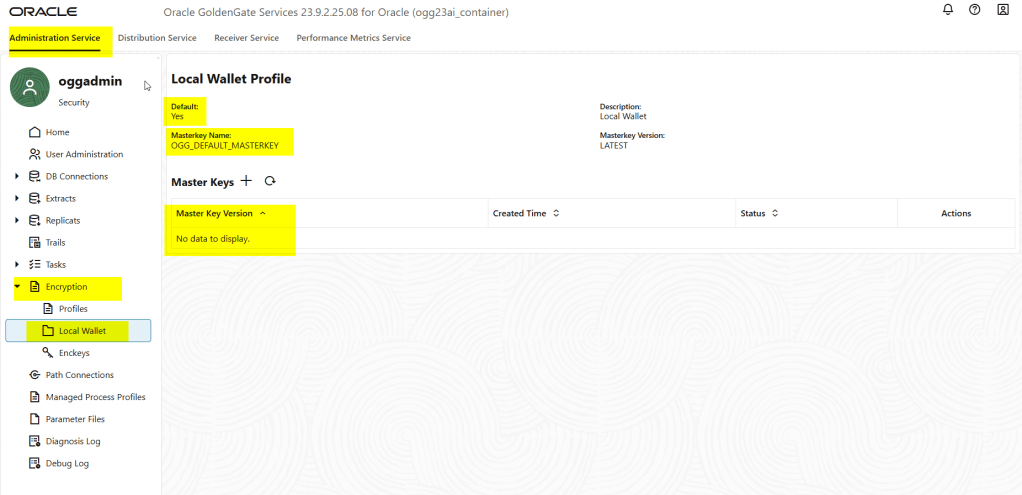
At this point, the Local Wallet profile already exists.

But we still need something rather important inside it: a master key.
Creating the Master Key
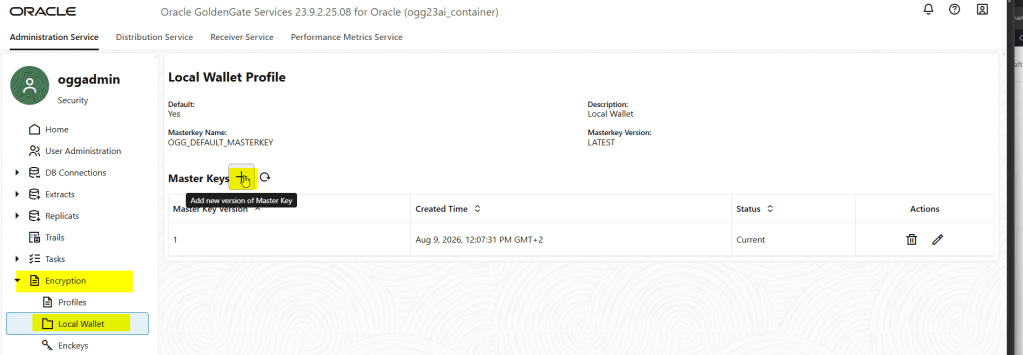
From the Local Wallet page, under Master Keys, click the + button to generate a new master key.
GoldenGate creates and stores the new master key in the local wallet associated with the deployment.
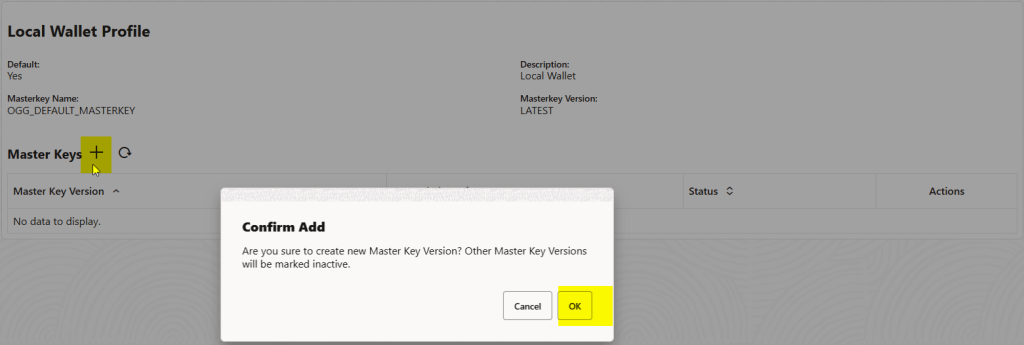
After creating it, we should see the new key listed under the Master Keys section.
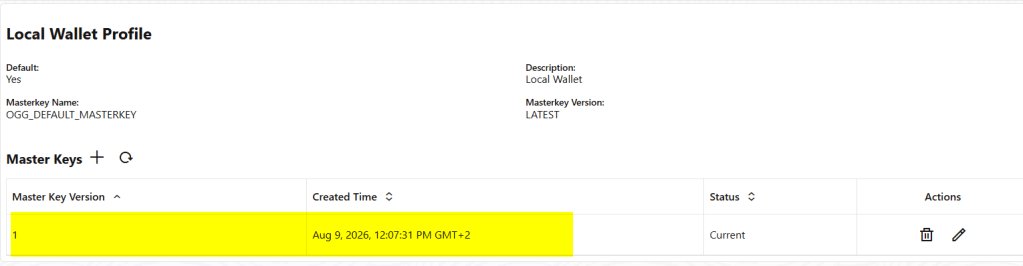
If we take another look at the wallet, we can see that it has been updated:
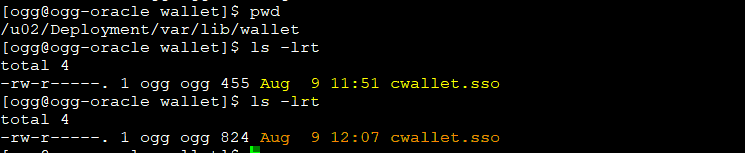
There is no key value to copy somewhere, no password to paste into an Extract parameter file, and thankfully no 64-character hexadecimal string that we need to save in a text file called keys_DO_NOT_DELETE.txt.
GoldenGate takes care of generating and storing the master key in the wallet.
That doesn’t mean we can forget about the wallet, though. Quite the opposite. Once our trails depend on this key, protecting and backing up the wallet becomes part of protecting the replication environment. We will come back to that later when we look at the operational considerations.
What About the Second Deployment?
This is where our two-deployment lab becomes useful.
Our Extract will write an encrypted trail on Deployment 1, but Replicat on Deployment 2 eventually needs to read it.
And there is the problem: the wrapped DEK travels with the trail, but the master key does not.
So Deployment 2 needs access to that master key somehow.
We could copy the wallet now and make everything work immediately, but where is the fun in that? Let’s leave the target without the key first and see what Replicat does.
Breaking it first makes the successful configuration slightly more satisfying.
Enabling Oracle GoldenGate Trail Encryption on Extract
We have our Local Wallet and master key ready. Now we can finally encrypt some data.
Trail encryption is enabled in the Extract parameter file using the ENCRYPTTRAIL parameter.
For example, let’s say our Extract currently looks something like this:
--- Auto generated Parameter File, do not edit ---EXTRACT EPDEMO1USERIDALIAS freepdb1 DOMAIN OracleGoldenGateEXTTRAIL aa--- End of auto generated Parameter File ---TABLE OGGDEMO.*;
To enable encryption, we add ENCRYPTTRAIL before the trail definition:
--- Auto generated Parameter File, do not edit ---EXTRACT EPDEMO1USERIDALIAS freepdb1 DOMAIN OracleGoldenGateENCRYPTTRAIL AES256EXTTRAIL aa--- End of auto generated Parameter File ---TABLE OGGDEMO.*;
The position of ENCRYPTTRAIL is important here. In the official doc this is mentioned:
When using the
ENCRYPTRAILparameter with theEXTTRAILparameter, ensure that theENCRYPTRAILparameter is mentioned before EXTTRAIL, else the trail will not be encrypted.
So make sure to specify it before EXTTRAIL. I warned you!
If we had multiple trails and only wanted to encrypt some of them, NOENCRYPTTRAIL can be used to disable encryption again for subsequent trail definitions, example:
ENCRYPTTRAIL AES192
EXTTRAIL ea
TABLE SOE.ORDERS;
NOENCRYPTTRAIL
EXTTRAIL st
TABLE SOE.CUSTOMERS;
For our lab, however, we only have one trail, so we’ll keep things simple.
Which Encryption Profile Is Extract Using?
There is another piece involved that isn’t visible in the parameter file.
Our Extract is associated with an encryption profile.
Remember that a GoldenGate process can only use one encryption profile at a time. If we didn’t explicitly specify one when the Extract was created, GoldenGate assigns whichever encryption profile was configured as the default at that moment.
In our case, that is the Local Wallet profile we configured earlier.
This is worth checking, particularly if you are enabling encryption on an existing deployment rather than building everything from scratch.
Changing the deployment’s default encryption profile later does not automatically change the profile already associated with an existing Extract.
So before going any further, let’s verify which encryption profile our Extract is actually using.
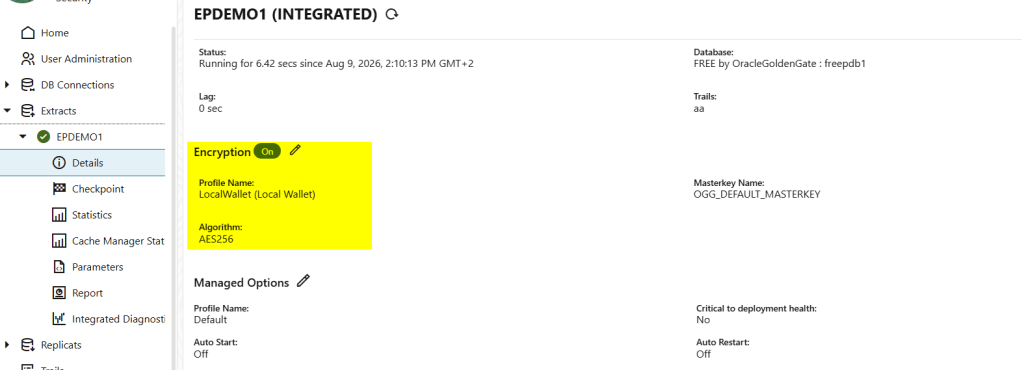
Once we know Extract is using the correct profile, we can restart it and generate some activity in the source database.
Generating Some Trail Data
For this test, we don’t need anything particularly sophisticated.
I’ll generate a few transactions against the replicated tables and let Extract write them to the trail.
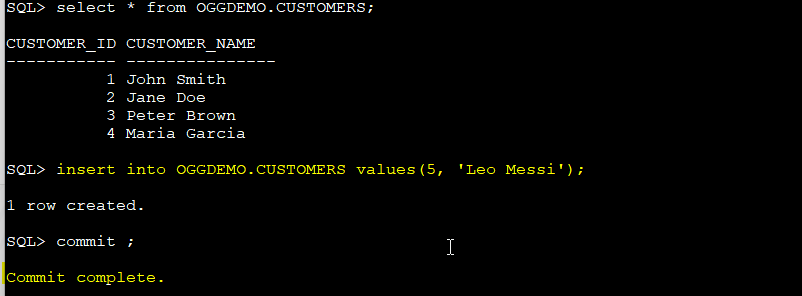
After a few moments, we should have a new encrypted trail file in the deployment.
At this point GoldenGate is running, Extract is capturing transactions and the trail is being generated normally. Everything looks good.
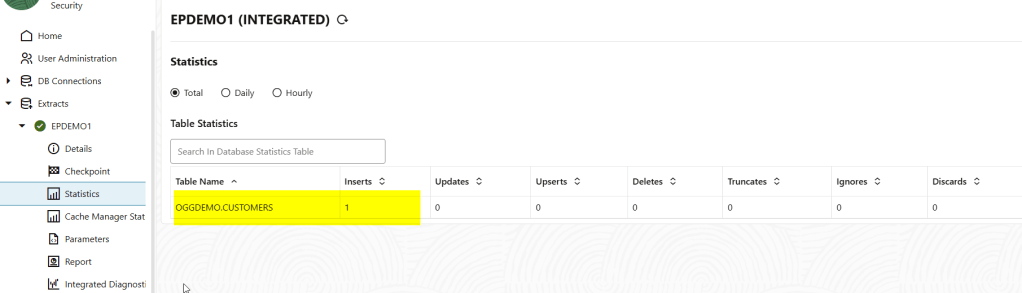
But all we really did was add a parameter and watch the process remain green.
That is not quite enough evidence for me, so let’s have a look at the trail itself, shall we?
Is the Trail really encrypted?
For that, we can use one of my favorite GoldenGate troubleshooting tools: Logdump.
If you haven’t used Logdump before, it allows us to inspect the contents of a GoldenGate trail directly. This makes it particularly useful for our test because we can compare what happens when we try to read the trail with and without access to the encryption key.
I’m not going to get into the details of Logdump itself here. If you’re interested, let me know and I can write a separate post about it.
Anyways, let’s start Logdump and open our encrypted trail:
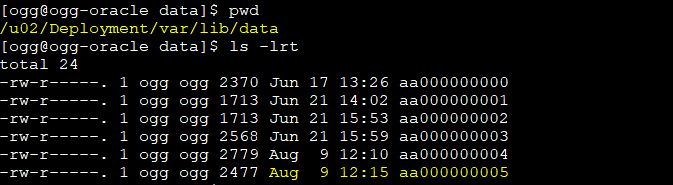
In this demo, the trail files are located under /u02/Deployment/var/lib/data, and the file we’re interested in is aa000000005.
Let’s open it and see if we can read it:
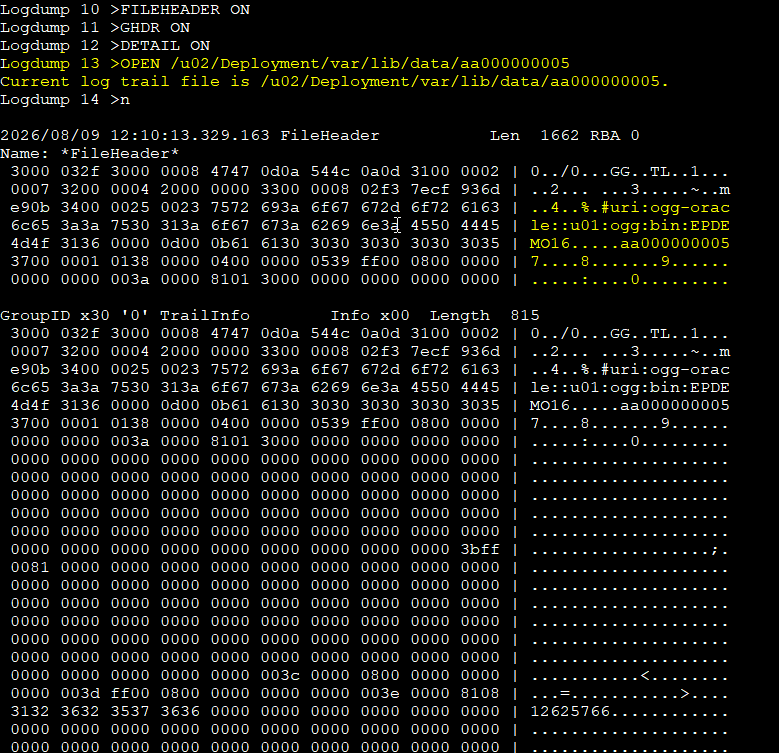
We are able to see some info about the extract process, but what about the data?
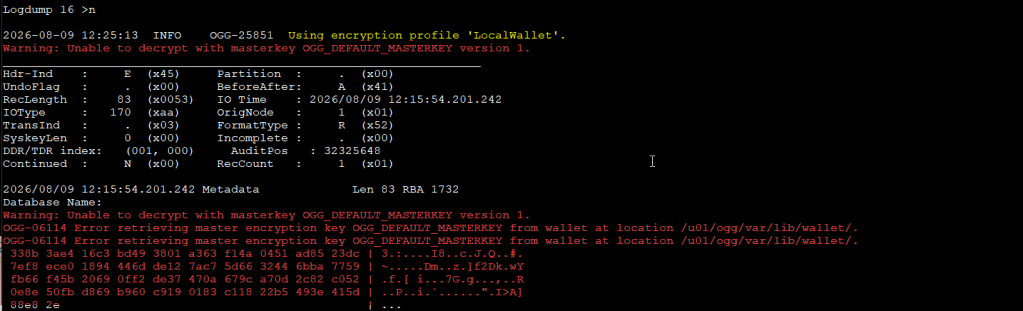
We can’t. Logdump knows that the trail is using an encryption profile, but it cannot retrieve OGG_DEFAULT_MASTERKEY version 1 from the wallet.
And if we look at the data itself, it is clearly not readable.
But what if we actually have access to the wallet? We are authorized users after all, right?
Decrypting the Trail with Logdump
Now let’s give Logdump access to the encryption configuration used by our GoldenGate deployment.
Before starting Logdump, we need to point it to the corresponding GoldenGate deployment directories:
export OGG_DEPLOYMENT=Deploymentexport OGG_VAR_HOME=/u02/$OGG_DEPLOYMENT/varexport OGG_ETC_HOME=/u02/$OGG_DEPLOYMENT/etcexport OGG_SSL_HOME=/u02/ServiceManager/etc/ssl
Then start Logdump again and open the same trail:
$ ./logdumpFILEHEADER ONGHDR ONDETAIL ONDECRYPT ONOPEN /u02/Deployment/var/lib/data/aa000000005
You can also use:
Logdump>> DECRYPT ON PROFILE LocalWallet
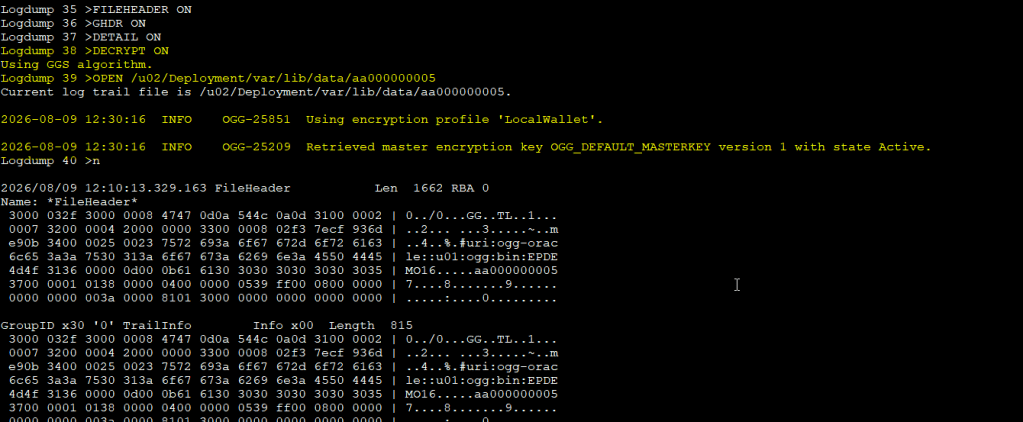
And now we are able to see the definition of the table and the data as well:
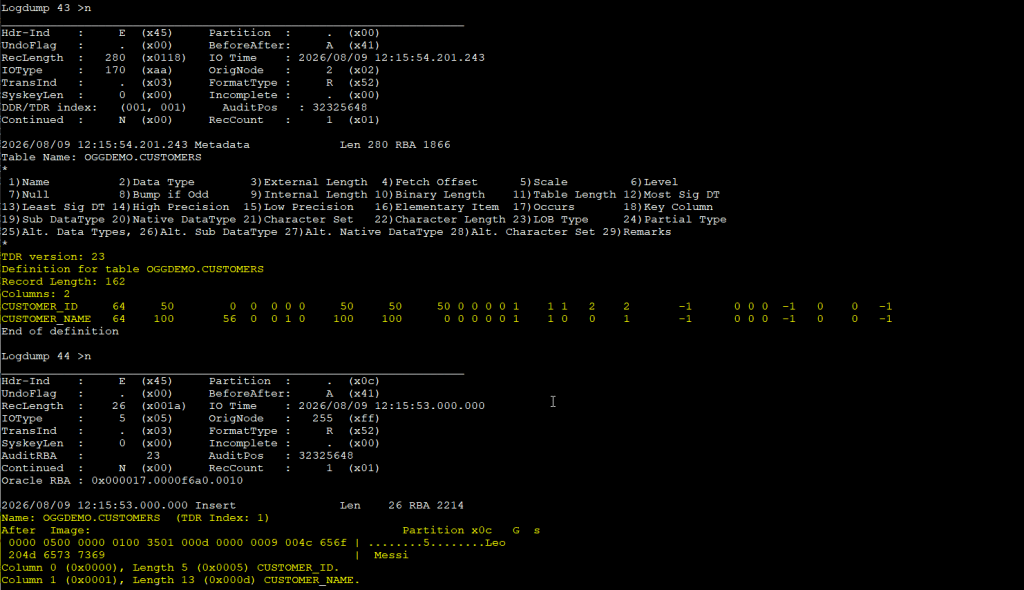
Same trail file, different result.
Without access to the appropriate encryption profile and master key, we cannot interpret the encrypted trail records. Once Logdump has access to the Local Wallet and retrieves the required master key, it can unwrap the DEK stored in the trail header and use it to decrypt the records.
So now we have something better than a green Extract status.
We have actually seen the encryption working.
Sending the Encrypted Trail to the Target
Our second GoldenGate deployment does not have that master key, yet.
Replication was already set up and working before we enabled encryption, so let’s take a look at Replicat and see what happened.
No surprise here. Replicat is ABENDED, and the error tells us exactly what’s wrong:
2026-08-09 12:15:56 ERROR OGG-06114 Error retrieving master encryption key OGG_DEFAULT_MASTERKEY from wallet at location /u02/Deployment/var/lib/wallet/.
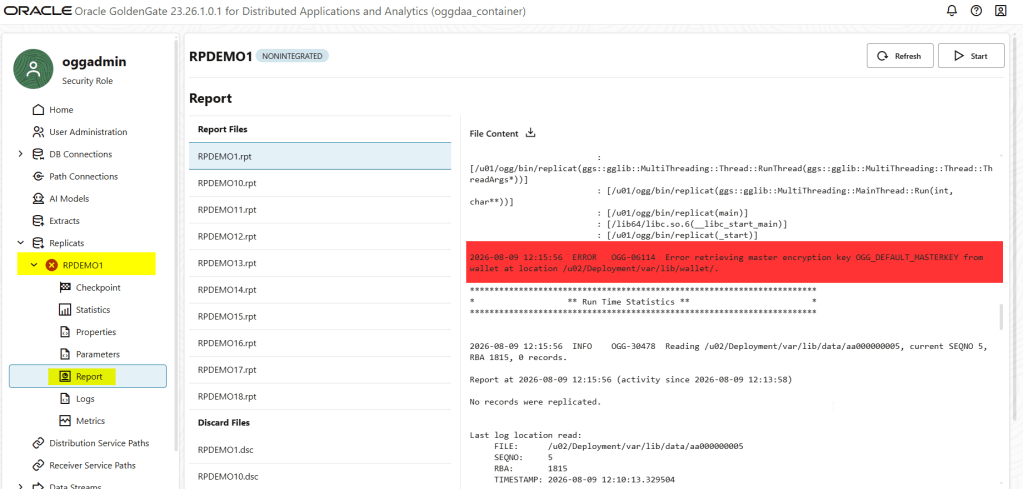
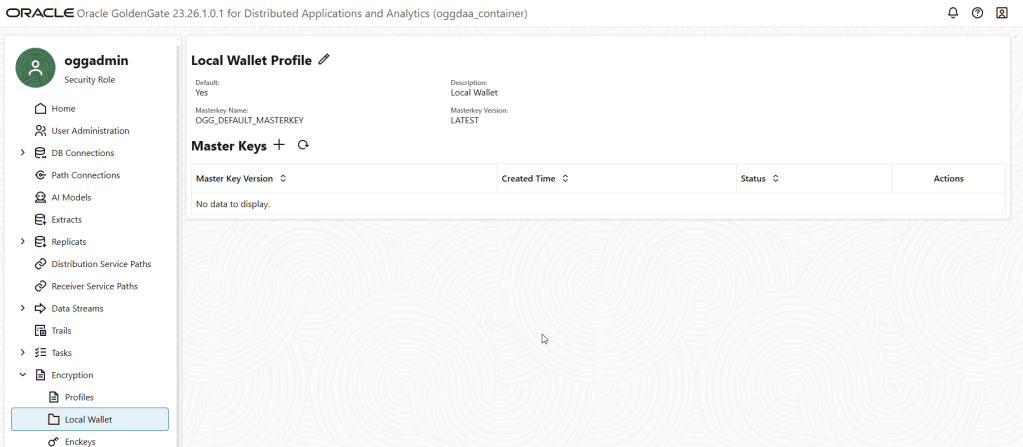
Deployment 2 has its own Local Wallet, but it does not contain the master key that Deployment 1 used to protect the DEK in our trail.
Trail Encryption vs Network Encryption
A quick distinction: trail encryption and network encryption are two different things. Our trail is encrypted at rest using the mechanism we’ve been testing, while the connection between Distribution Service and Receiver Service can be protected separately using WSS.
One protects the trail itself. The other protects the communication channel while we move it.
Sharing the Local Wallet
For Local Wallet encryption, GoldenGate systems that need to process the encrypted trails must have access to the required master key versions.
In our topology the wallets are not on shared storage, so we need to propagate the wallet containing the master key from Deployment 1 to Deployment 2.
The wallet contains the cwallet.sso file holding the GoldenGate master encryption key.
Before replacing anything on the target, I will stop the processes that depend on the wallet and, of course, make a backup of the existing target wallet first.
Because overwriting security files without a backup is the sort of confidence I would rather not have.
I’ve backed up the existing wallet and copied the wallet from Deployment 1 to Deployment 2. Let’s see how it looks in the console now:

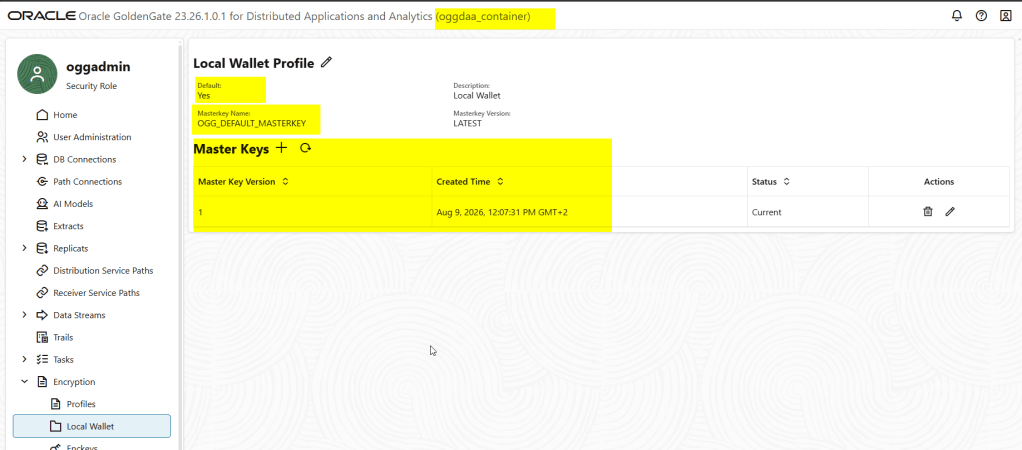
The important thing here is that Deployment 2 can now see the same master key version that was used when our encrypted trail was created.
Now let’s start Replicat again.
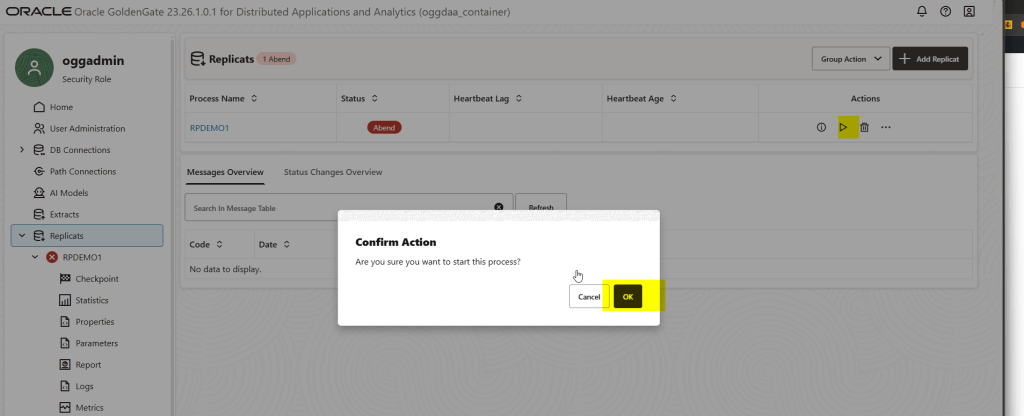
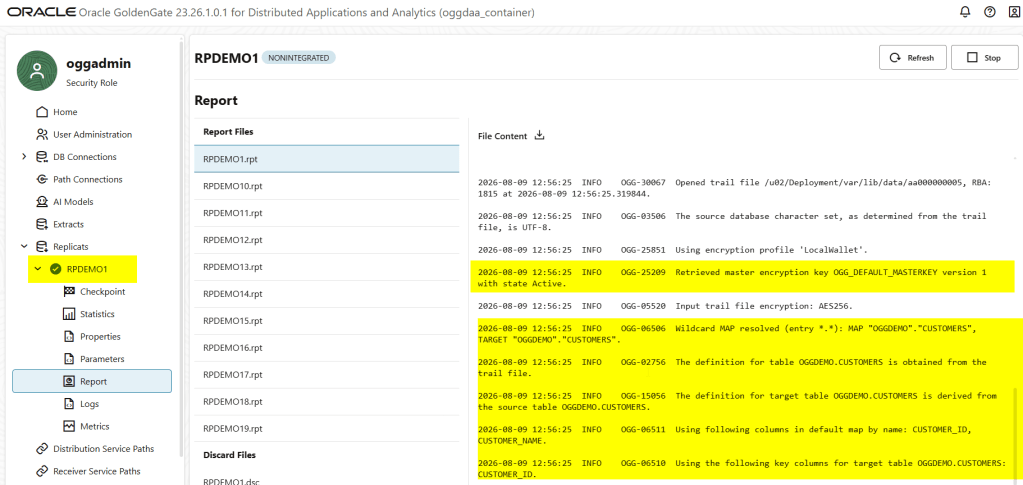
Much better.
And if we check the target, the transactions generated earlier have been applied successfully.
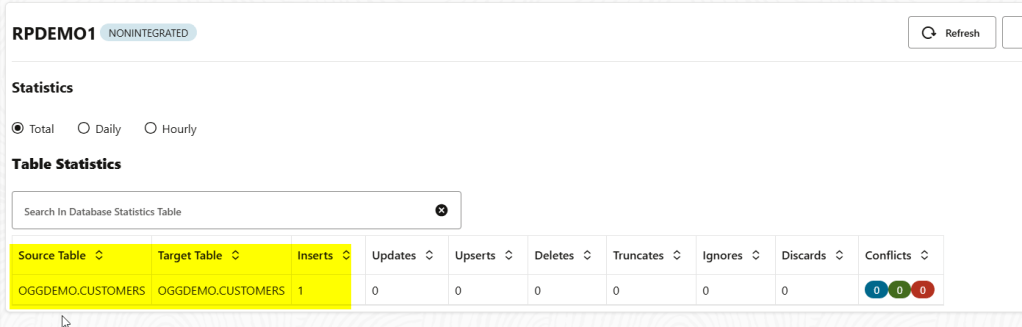
So our complete flow is now working.
If we choose Local Wallet as our key management mechanism, keeping those wallets synchronized becomes our responsibility, so keep that in mind!
Rotating the Master Key
Our encrypted replication is working, but encryption keys are not normally something we create once and forget about forever.
At some point, we may want to rotate the master key.
With the Local Wallet, GoldenGate handles this by maintaining versions of the master key. When we renew the key, GoldenGate creates a new version while retaining the previous versions in the wallet.
We can also check the current master key versions from Admin Client with INFO MASTERKEY:

At the moment, version 1 is our current master key.
After renewing the master key, we should see something similar to:
AdminClient>> INFO MASTERKEYMasterkey Name: OGG_DEFAULT_MASTERKEYVersion Creation Date Status1 <date>> Available2 <date>> Current
Let’s do that.
Stop the processes and rotate the master key
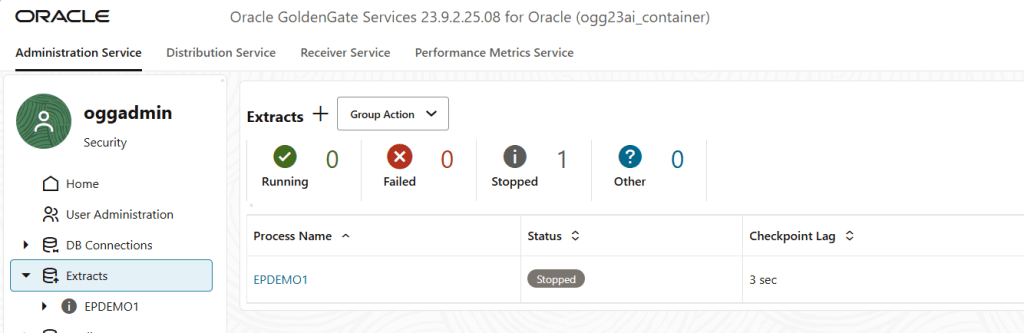
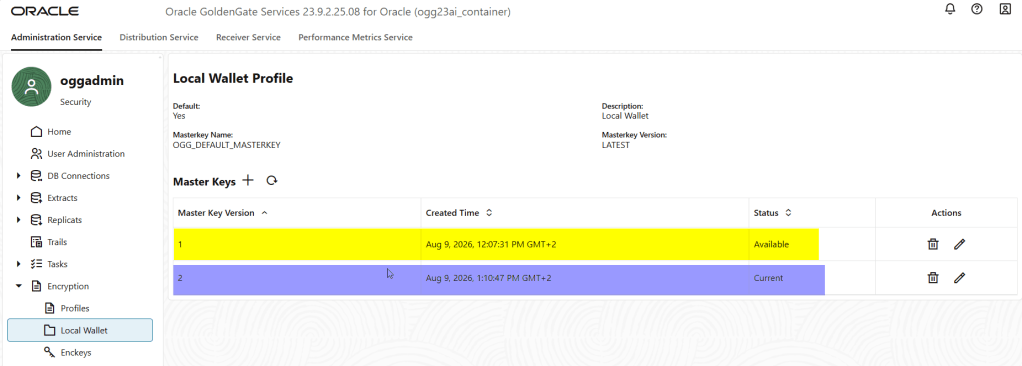
The name hasn’t changed.
OGG_DEFAULT_MASTERKEY is still our master key, but version 2 is now the current version.
Version 1 is still there, and we definitely shouldn’t delete it yet.
Don’t Throw Away the Old Key Yet
Remember how our trail encryption works.
Each trail file contains a DEK encrypted with the master key version that was current when that trail was created.
That means creating a new master key version does not magically re-encrypt all of our existing trails.
Some trails may still depend on version 1 while newer trails use version 2.
Trail ea000000001 | +-- DEK wrapped with Master Key v1Trail ea000000002 | +-- DEK wrapped with Master Key v1Trail ea000000003 | +-- DEK wrapped with Master Key v2
If we delete version 1 while GoldenGate still needs to process one of those older trails, we have just created a considerably more exciting replication problem than we had five minutes ago.
So old master key versions should remain available until we are certain that no process still needs them.
And We Have Two Deployments
We renewed the master key on Deployment 1, but Deployment 2 still has the wallet we copied earlier.
In other words:
Deployment 1 Deployment 2Local Wallet Local WalletMaster Key v1 Master Key v1Master Key v2 <-- Current
Deployment 2 knows absolutely nothing about version 2 yet.
Because we are using Local Wallets without shared storage, synchronizing the updated wallet across the GoldenGate systems that need it is our responsibility.
So after renewing the master key, we also need to propagate the updated wallet to Deployment 2.
And this isn’t something I would recommend doing by casually copying cwallet.sso while everything is running.
The safe sequence is roughly:
- Stop Extract so no new trail data is generated using a key version that hasn’t reached the downstream deployment yet.
- Allow the downstream processes to finish processing the trails already generated.
- Stop the downstream GoldenGate processes.
- Copy the updated wallet to the other deployment.
- Start the GoldenGate processes again.
Once the updated wallet is available on Deployment 2, we can verify it again:
AdminClient>> INFO MASTERKEYMasterkey Name: OGG_DEFAULT_MASTERKEYVersion Creation Date Status1 <date>> Available2 <date>> Current
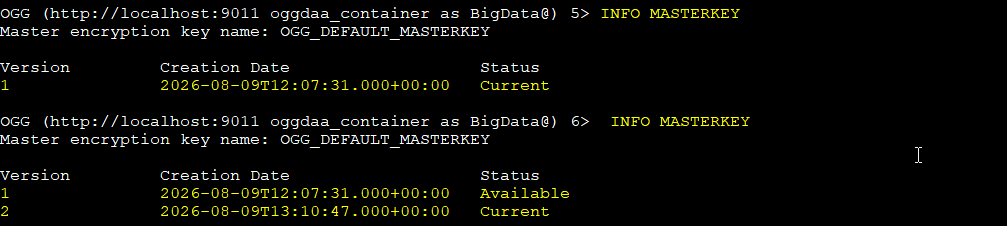
Now both deployments have the versions required to process our trails.
What About Removing Old Keys?
Eventually, we probably don’t want an unlimited collection of old master key versions sitting in the wallet.
GoldenGate allows old versions to be marked for deletion and later permanently removed by purging the wallet.
But this is one of those operations where being impatient doesn’t win any prizes.
Before deleting an old master key version, we need to make sure every downstream process has finished processing all trails that were encrypted using that version.
Oracle recommends checking the Extract report to identify the last SCN processed with the old key and then verifying from the Replicat reports that the same SCN has been applied downstream.
Only then should we consider removing the old version.
And PURGE WALLET is permanent. There is no CTRL+Z WALLET.
So I would definitely verify twice before pressing that particular button.
A Few Operational Considerations
Before wrapping up, there are a few things worth keeping in mind if you plan to use Local Wallet encryption outside a lab.
Back Up and Protect the Wallet
Your encrypted trails depend on the master keys stored in the wallet, so the wallet needs to be part of your backup and recovery strategy.
It should also be properly protected at the filesystem level. Encrypting the trail while leaving unrestricted access to the wallet would somewhat defeat the purpose.
And remember that rotating the master key changes the wallet, so backups need to account for that too.
Think About Disaster Recovery
The same applies to DR.
If a disaster recovery GoldenGate deployment needs to process trails encrypted with production master keys, those keys need to be available there as well.
“Replication is ready, but we forgot the encryption keys” is probably not the update you want to give during a recovery call.
Local Wallet Means Local Responsibility
The main advantage of Local Wallet is simplicity. There is no external key management platform to configure.
The trade-off is that we are responsible for protecting, backing up and synchronizing those wallets.
With two deployments, that is manageable. As the topology grows, centralized key management solutions such as Oracle KeyVault (OKV) or OCI KMS start becoming more attractive.
But that is a topic for another article.
Wrapping Up
There is a little more happening behind ENCRYPTTRAIL than the parameter name might suggest.
GoldenGate generates a DEK for each trail file and uses it to encrypt the trail data. That DEK is then wrapped using the master key stored in the Local Wallet. As we saw with Logdump and Replicat, having the encrypted trail alone isn’t enough. The corresponding master key must also be available to the process that needs to read it.
Local Wallet makes this relatively easy to set up, and it doesn’t require an external key management platform. The trade-off is pretty clear too: those wallets are now ours to protect, back up and keep synchronized.
For two deployments, that’s manageable. As the environment grows, centralized key management starts looking considerably more attractive.
And that’s exactly where we’ll go next in this series.

 DatabaseVerse: Journey into the World of Databases
Leave a comment