

In today’s world, data security is paramount as organizations face increasing threats to their sensitive information. Oracle Key Vault (OKV) is a secure and standards-compliant key and secrets management appliance that allows you to store, manage, and share your security objects. Oracle Key Vault centralizes key and secrets management across your organization quickly and efficiently. Security objects that you can manage with Oracle Key Vault include:
- Encryption Keys
- Oracle Wallets
- Java Keystores (JKS)
- Java Cryptography Extension Keystores (JCEKS)
- Credential files, which can include:
- SSH private keys for public key authentication to remote servers, such as OCI compute instances
- Database Account Passwords
Oracle Key Vault is built on Oracle Linux and uses Oracle Database security features like Oracle Transparent Data Encryption, Oracle Database Vault, Oracle Virtual Private Database, and Oracle GoldenGate technology. It helps organizations overcome key-management challenges.
- Key Benefits You Can’t Ignore!
- Understanding Oracle Key Vault: Concepts and Architecture
- How to Deploy Oracle Key Vault: Deployment options?
- See Oracle Key Vault in Action: A Demo
- Wrapping Up: Key Takeaways About Oracle Key Vault
Key Benefits You Can’t Ignore!
Oracle Key Vault (OKV) offers numerous benefits that enhance data security and streamline encryption management across an organization:
Optimization for Oracle Technologies
OKV is built to work seamlessly with the Oracle stack (database, middleware, and systems), Advanced Security Transparent Data Encryption (TDE), and complies with the OASIS Key Management Interoperability Protocol (KMIP).
Comprehensive Key Lifecycle Management
OKV manages the entire lifecycle of endpoint security objects and keys, including creation, rotation, deactivation, and removal, ensuring a secure and organized approach to encryption assets.
Protection Against Key and Wallet Loss
By providing robust backup and restore functionality, OKV prevents the loss of keys and wallets due to forgotten passwords or accidental deletion.
Secure Key Sharing Across Endpoints
OKV enables the secure sharing of keys and security objects between authorized endpoints, enhancing collaboration without compromising security.
Simplified Endpoint Enrollment and Provisioning
A single software package containing binaries, configuration files, and endpoint certificates streamlines endpoint enrollment and provisioning. This ensures mutually authenticated connections between endpoints and OKV.
Broad Key Management Support for Oracle Ecosystem
OKV provides key management for encrypted Oracle Databases deployed in Real Application Clusters (RAC), Oracle Data Guard, Oracle Multitenant pluggable databases, globally distributed (sharded) databases, encrypted Oracle GoldenGate trail files, encrypted ACFS, ZDLRA, and more.
Cross-Platform Integration
OKV integrates seamlessly with Oracle databases, MySQL, and other key-dependent applications, offering a unified solution for key lifecycle management.
Robust Compliance Features
OKV supports organizations in meeting regulatory requirements, such as GDPR, HIPAA, and PCI DSS, through its advanced encryption and key management capabilities.
Streamlined Administration
Role-based access controls, RESTful APIs, and automated key rotation reduce the administrative overhead of managing encryption assets.
Understanding Oracle Key Vault: Concepts and Architecture
OKV employs a robust architecture designed for security and high availability. It consists of:
- Oracle Key Vault Server: This is the central component responsible for storing and managing security objects. It is pre-configured with an operating system, database, and the OKV application, ensuring a secure and streamlined setup.
- Endpoints: These are the various computer systems within your organization, such as database and application servers, that need to access keys and credentials stored in OKV. Endpoints can range from systems with existing keys to those capable of generating new ones.
- Communication Protocol: OKV and endpoints communicate securely over Transport Layer Security (TLS) using the OASIS Key Management Interoperability Protocol (KMIP). This ensures the confidentiality and integrity of data in transit.
Access Control Configuration:
OKV enforces strict access controls to safeguard sensitive security objects. Key aspects include:
- Access Grants: Access to specific objects is determined by access grants.
- Access Control Options: These options define the level of access allowed, such as read, write, or delete permissions.
Administrative Roles and Privileges:
To manage OKV effectively and maintain security, distinct administrative roles are defined:
- Separation of Duties: This principle is central to OKV’s security model. Different administrative roles have distinct responsibilities, preventing any single individual from having excessive control. This mitigates the risk of unauthorized actions or security breaches.
- Administrative Roles: Three primary roles are defined:
- System Administrator: Responsible for overall system management, including user creation, endpoint management, system configuration, and alerts.
- Key Administrator: Focuses on managing security objects such as keys, certificates, and wallets.
- Audit Manager: Oversees audit logs, ensuring comprehensive tracking of system activity for security and compliance purposes.
- Endpoint Privileges: Fine-grained control over endpoint actions within OKV, such as creating and managing endpoint groups.
- Monitor Privilege: The ability to monitor various system aspects.
Additional Concepts:
- Naming Guidelines: Consistent naming conventions are crucial for efficiently organizing and managing objects within OKV.
- Emergency System Recovery: OKV provides a recovery passphrase to address emergency situations, like administrative unavailability or forgotten passwords, enabling system access and administrative user creation. This passphrase is crucial for maintaining system availability even in unforeseen circumstances.
- Root and Support User Accounts: These accounts are essential for system maintenance and troubleshooting. They provide privileged access for critical tasks.
- Endpoint Managers and Administrators: These roles are responsible for managing endpoints and their interaction with OKV.
- FIPS Mode: Enables OKV to comply with FIPS 140-2 Level 1 security standards, using validated cryptographic libraries to protect sensitive data both in transit and at rest.
Understanding these fundamental concepts is crucial for anyone working with OKV. They provide the framework for effectively deploying, managing, and securing your organization’s encryption keys and other sensitive security objects.
How to Deploy Oracle Key Vault: Deployment options?
Now that you are aware of some important concepts about OKV, we can talk about the deployment, but one more thing about OKV—please read the important note below!
Oracle Key Vault is packaged as a software appliance preconfigured with an operating system, a database, and the Oracle Key Vault application.
This way, you do not have to install and configure individual components. It is hardened for security according to operating system and database hardening best practices. The installation process does not include any unnecessary packages and software, and it enables only required ports and services.
IMPORTANT NOTE
As mentioned before OKV is packaged as a hardened software appliance. It is strongly discouraged to install any third party software on Oracle Key Vault. Changes to Oracle Key Vault are not supported, may interfere with upgrades, break the appliance and make it unusable.
There are multiple deployment options for Oracle Key Vault:
- Multi-Master Cluster Configuration: This is ideal for geographically distributed data centers with high load and extreme availability requirements. Read/write pairs should span data centers.
- 2-Node Cluster Deployment (One Read/Write Pair): This is suitable for single data centers instead of a primary-standby deployment where data doesn’t leave the data center. It provides better resource utilization (no idle standby server) and is suitable for a growing Oracle Key Vault cluster.
- Primary-Standby Primary-standby configuration deployment is deprecated in Oracle Key Vault 21.5: Primary-Standby
- Standalone Deployment: This is useful for testing and development environments.

You can also deploy Oracle Key Vault on an Oracle Cloud Infrastructure (OCI) Compute Instance. This cloud-based version offers flexible, continuous, and scalable key management. The provisioning process involves launching the compute instance and performing post-launch and post-installation tasks, the demo will be focus on this option, more on that in the following section!
Additional information about specific deployment scenarios, such as migrating Oracle Key Vault deployments, creating Oracle Key Vault images in various cloud platforms, and deploying Oracle Key Vault on Oracle VM Virtual Box, can be found in the official documentation: Deploying Oracle Key Vault on an Oracle Cloud Infrastructure VM Compute Instance
See Oracle Key Vault in Action: A Demo
OKV is undoubtedly a fascinating and powerful topic. At first glance, it might seem a bit complex, especially if you’re just starting. But don’t worry—once you grasp the basics, it all starts to make sense! If you haven’t already, I strongly recommend reading through the introduction and key concepts to get a solid foundation before diving into the demo.
Ready? Let’s shift our focus to the demo and see OKV in action!
For this demonstration, I will deploy Oracle Key Vault (OKV) on Oracle Cloud Infrastructure (OCI) using the Marketplace. The deployment will be a standalone setup, specifically designed for demonstration purposes.
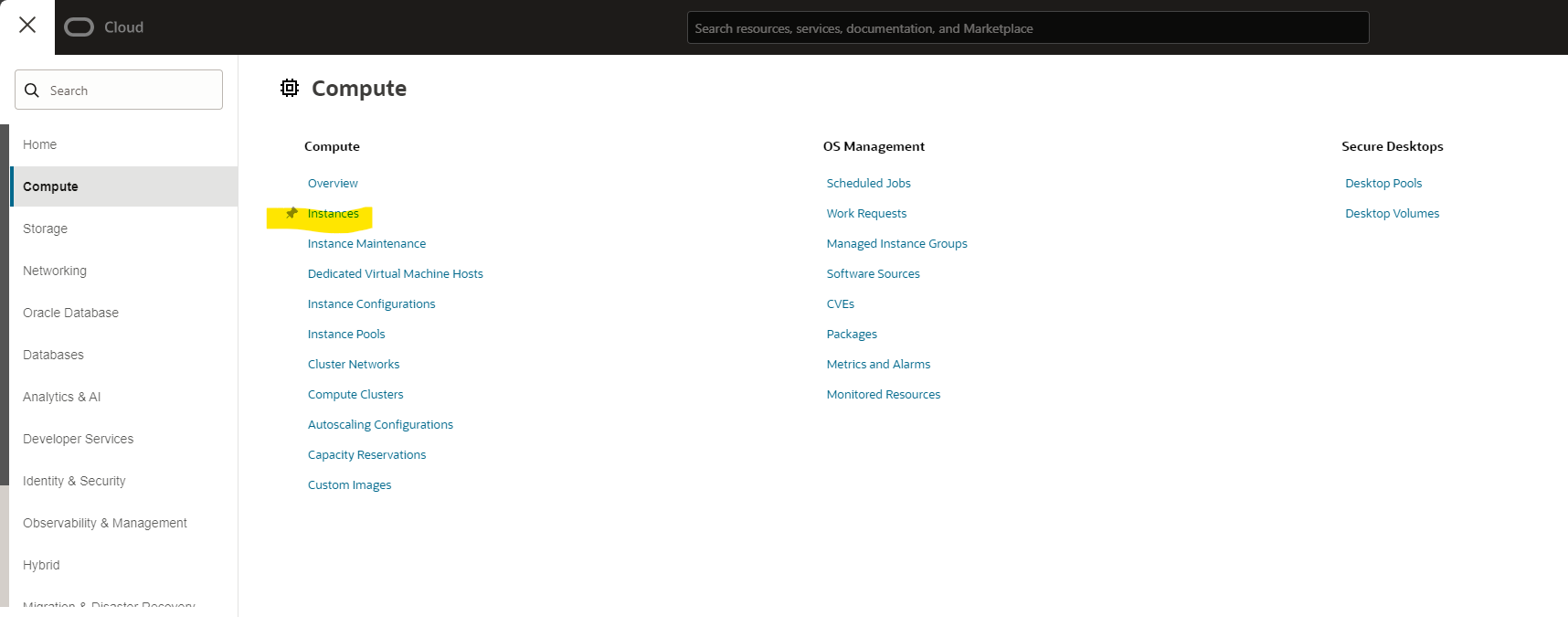
To create a OCI compute instance just login to your OCI tenant and then go to COMPUTE and select instances:
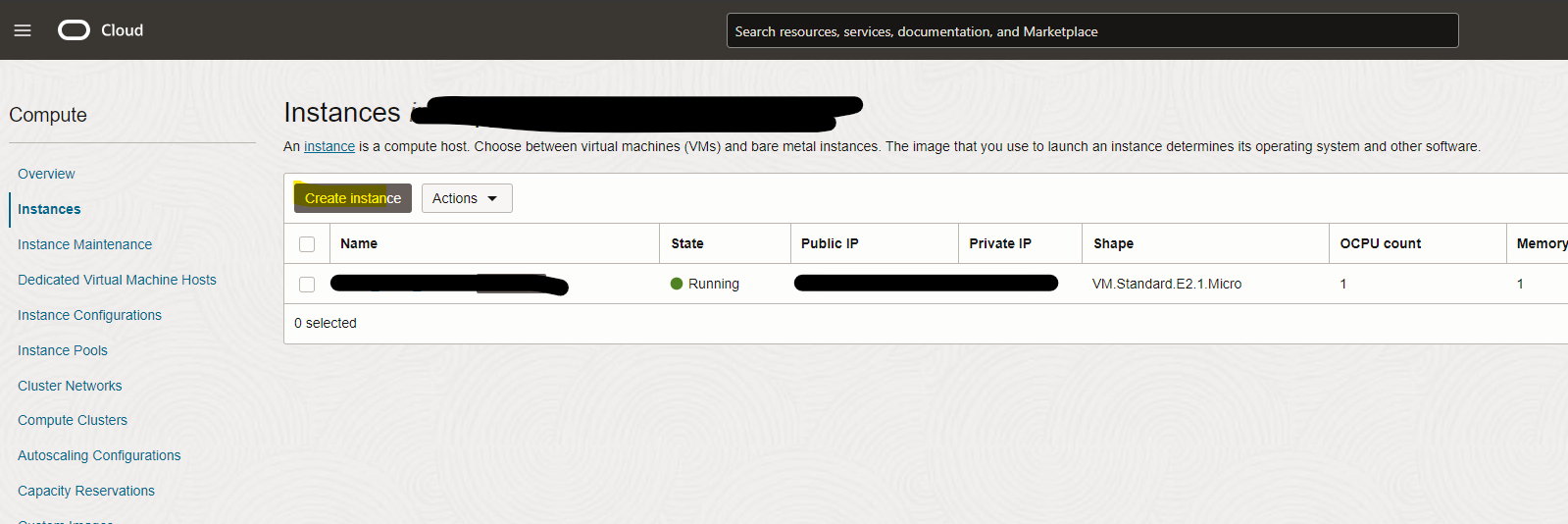
Then, create a new instance clicking on the create instance button:
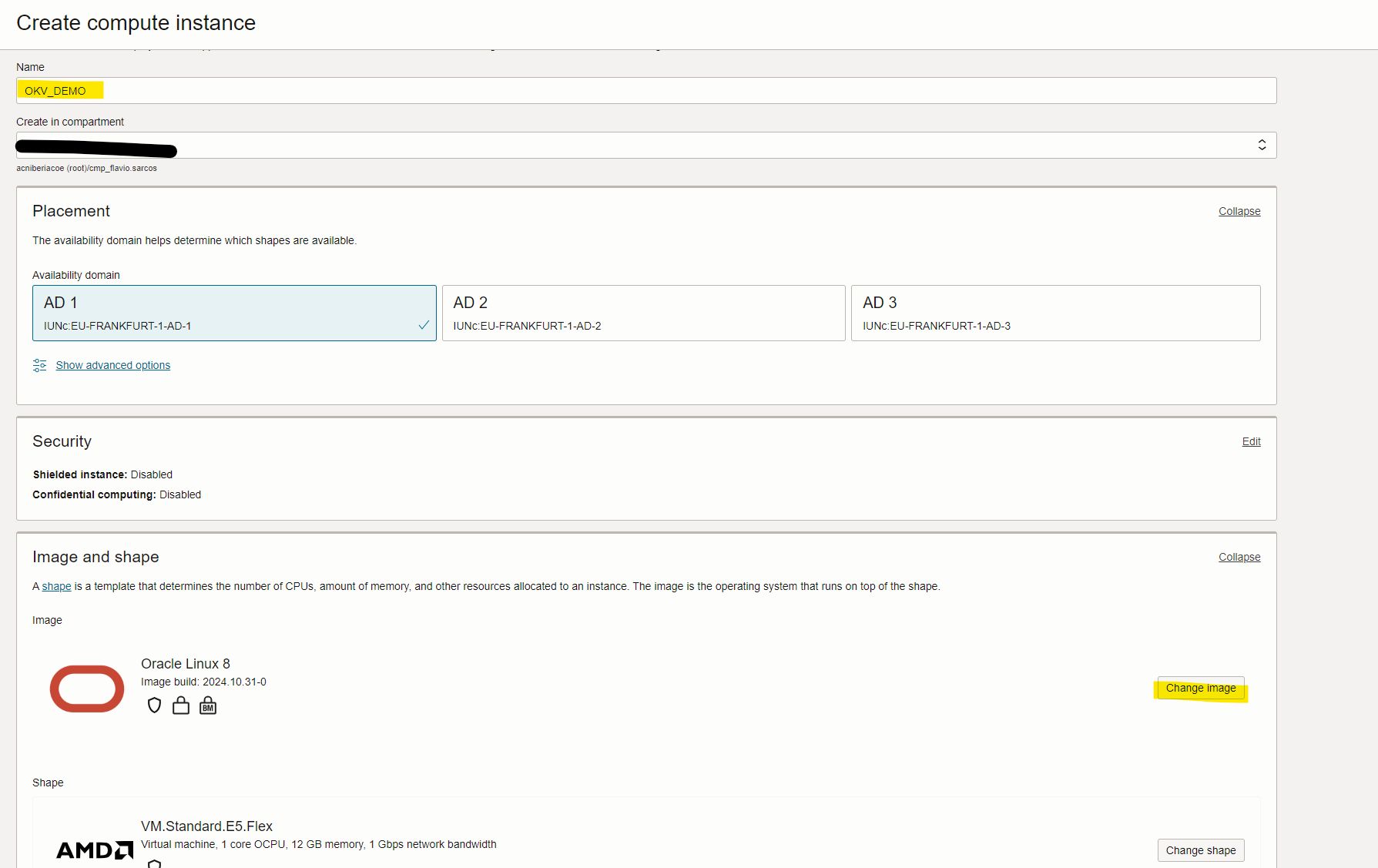
Give it a name to the instance you want to create and then proceed to image and shape section, click on the change image so you can search for the custom image available in the marketplace:
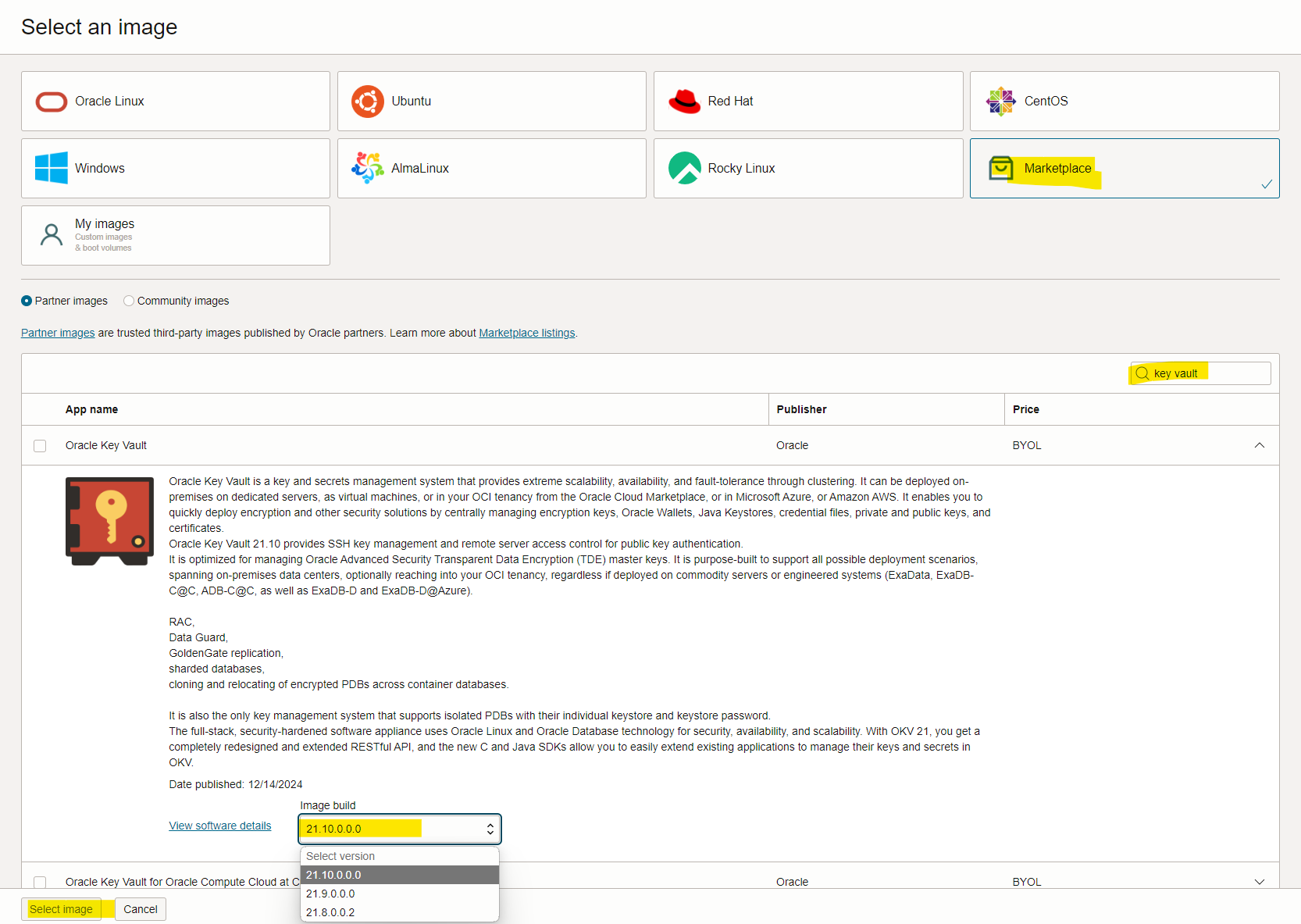
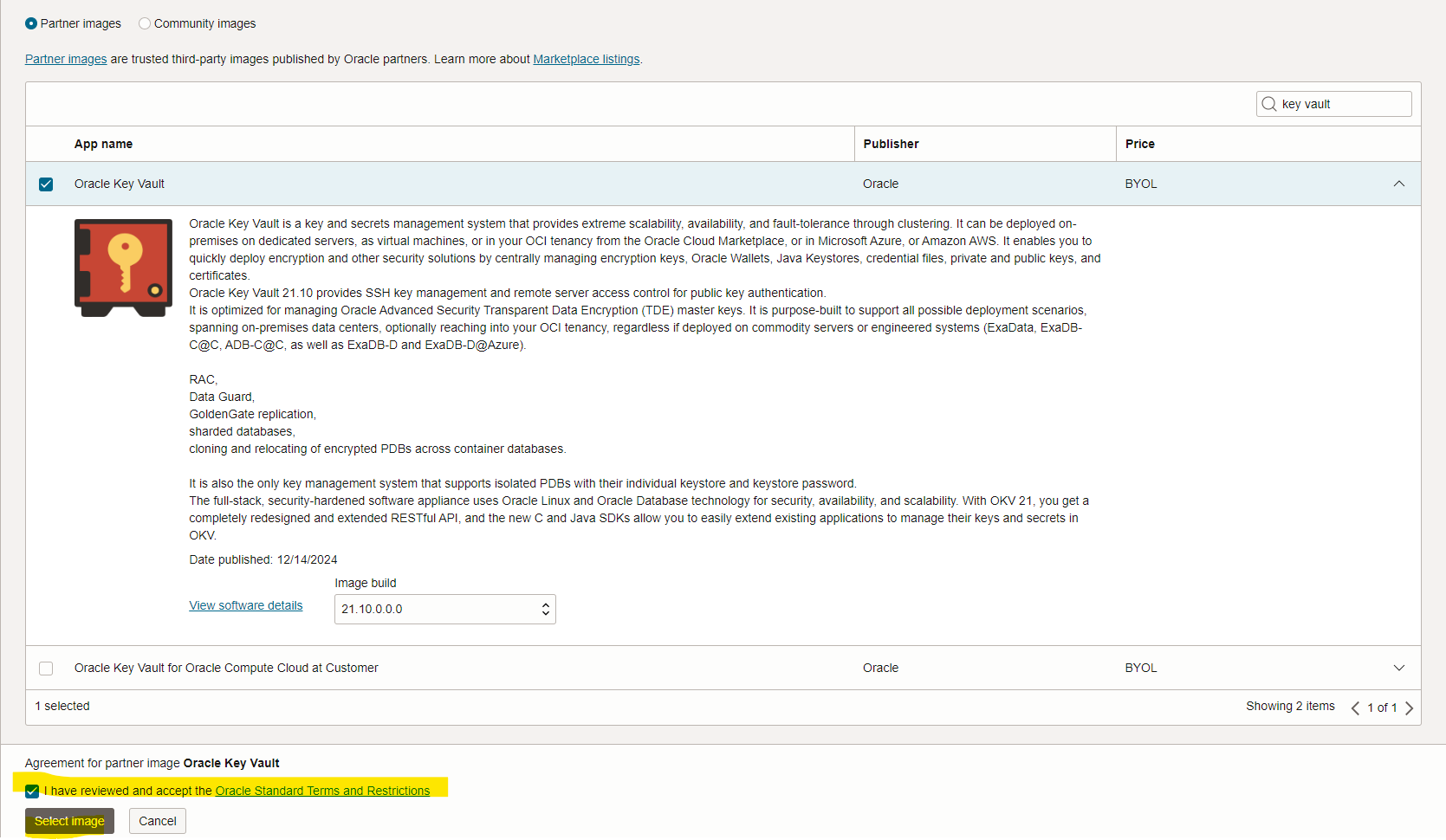
Select marketplace and write in the search text key vault, you will see two options available, once for compute instances and the other for Oracle Compute Cloud At Customer, in this demo I will select the image for compute instance and I will select the 21.10 that is the latest release available at this date: 06/JAN/2025
Once selected, proceed to accept the terms:
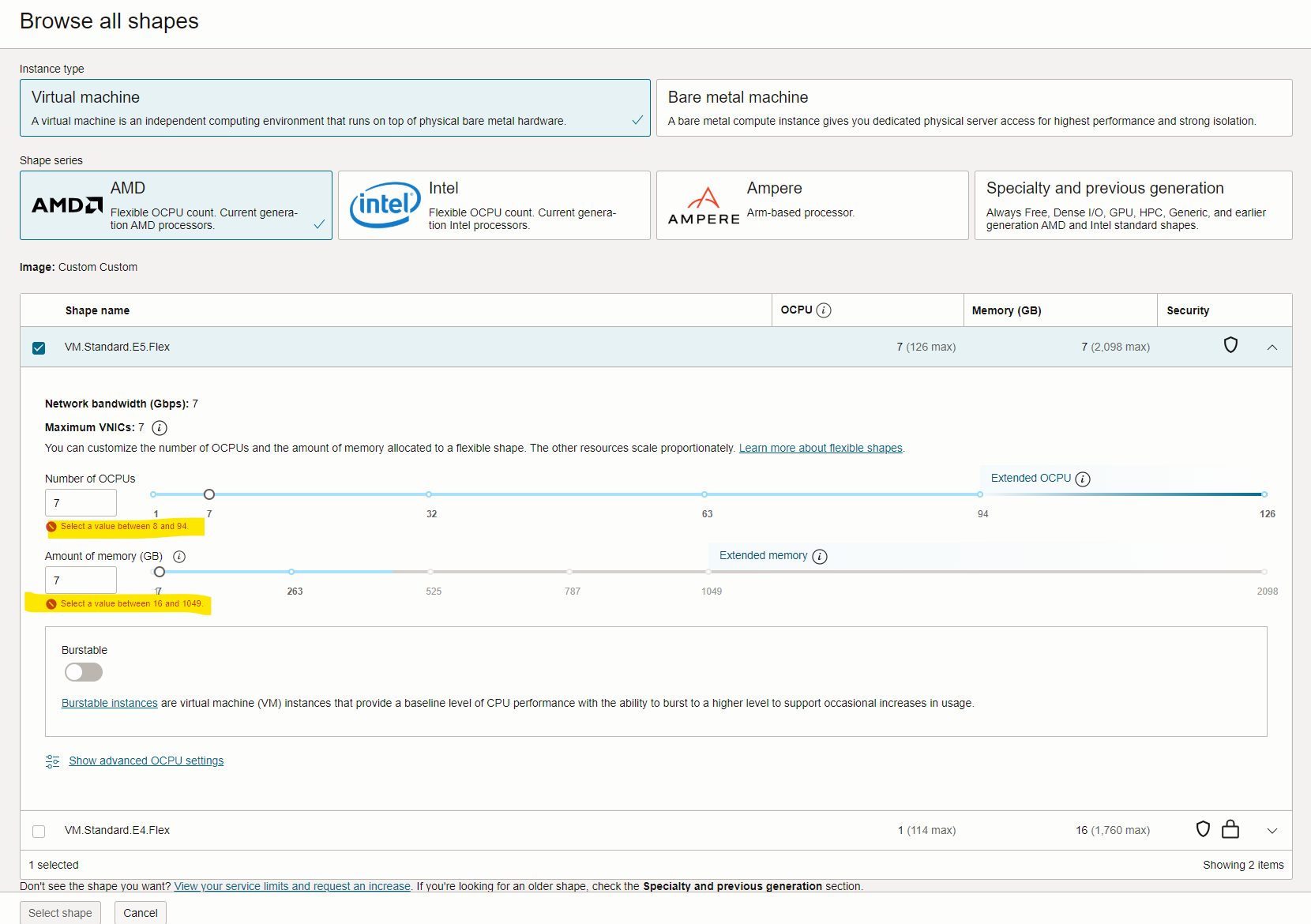
Now, the image needs as minimum hardware requirements the following:
- 8 OCPUs
- 16GB RAM
- 4TB of disk space (this is per default created)
As you can see above.. even if you want to decrease the resources then you won’t be able to select the shape:
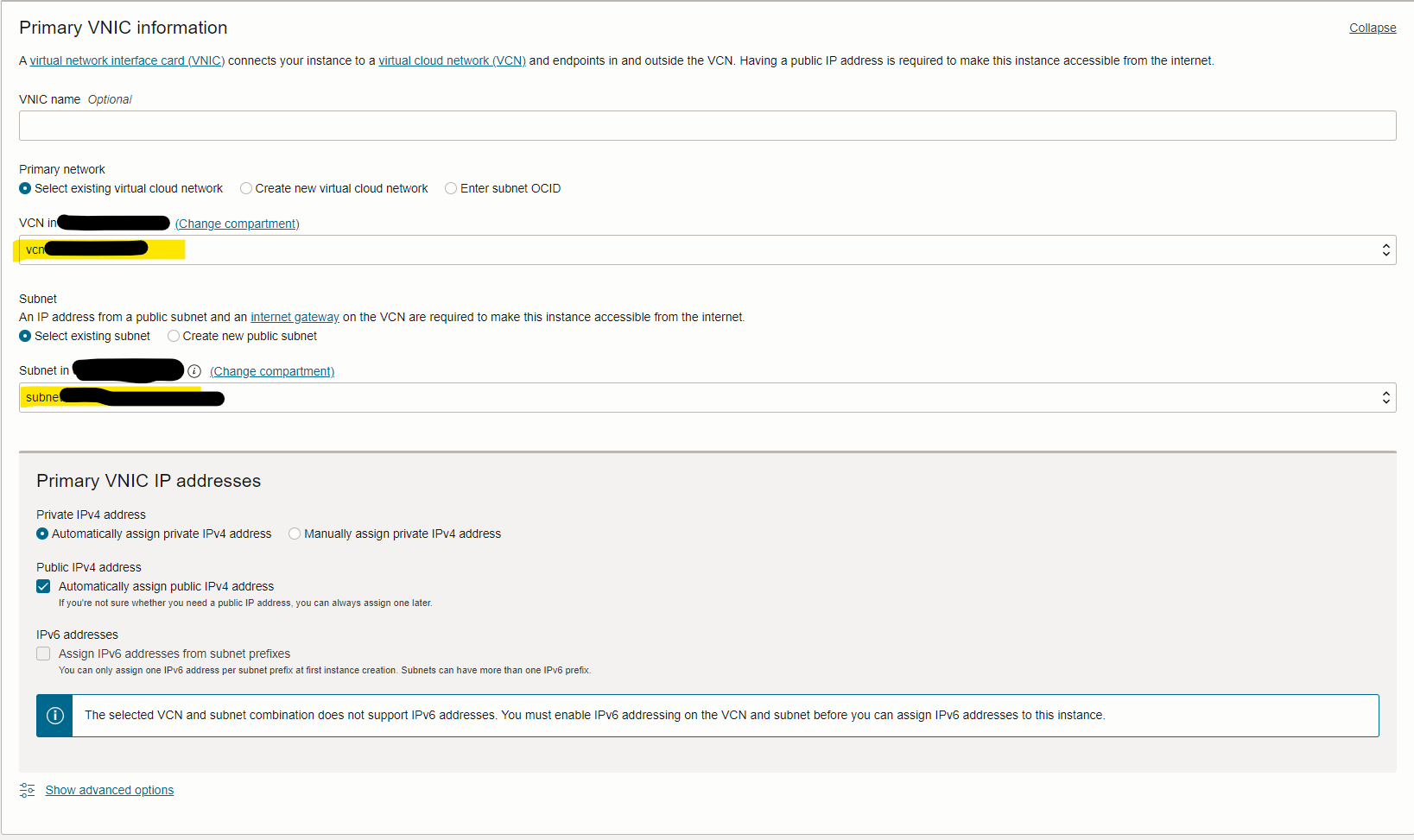
Then, you will need to specify the VCN and SUBNET, I have them already created them:
then, in order to login to the VM you will need to generate a key par or upload/copy/paste a public key

Finally, double check that everything is as per your requirements and create the VM instance… it will take just few minutes until OKV it is deployed!
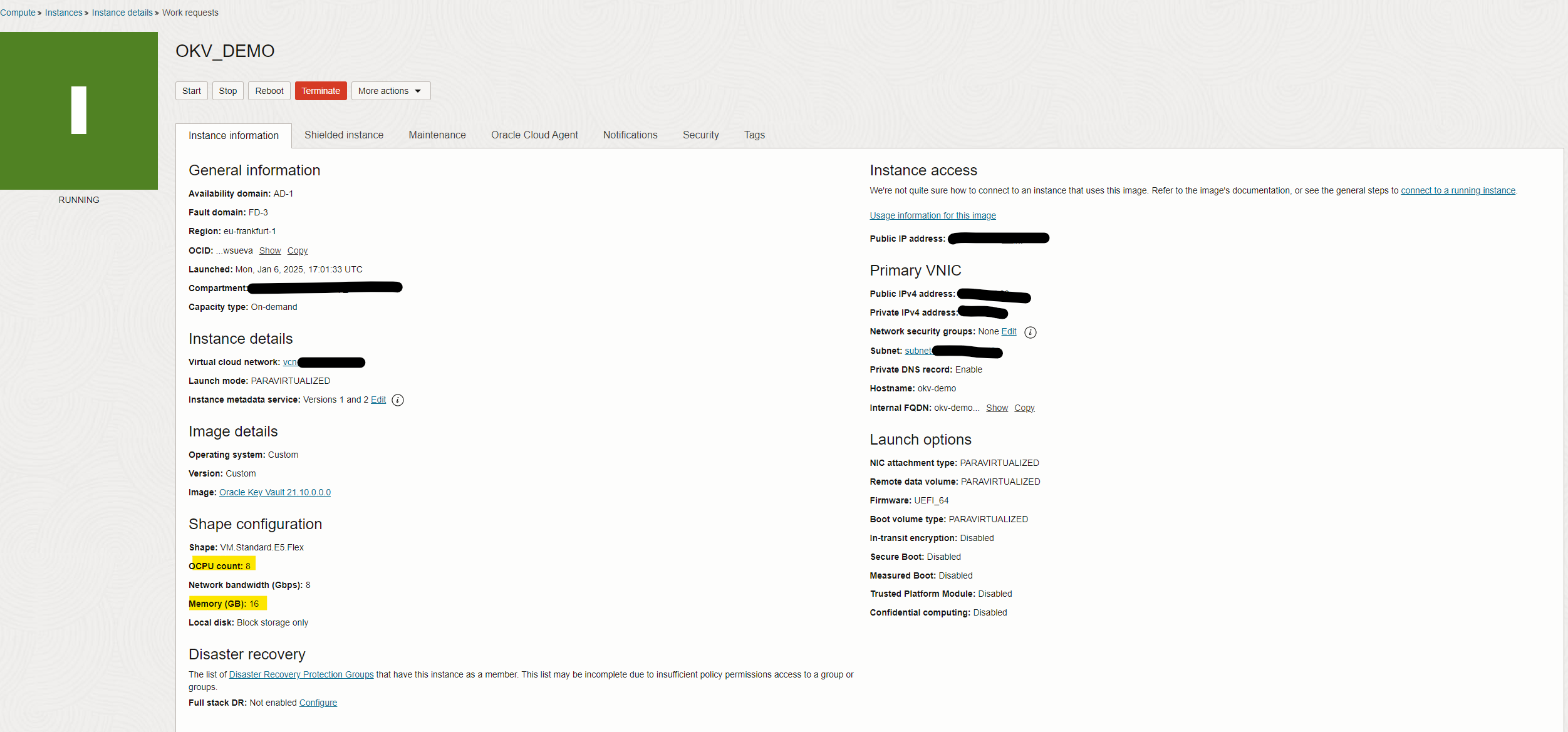
Now, let’s proceed with the setup!
Getting Started with Oracle Key Vault Setup
Let’s log in to the OKV VM with the opc user now; if you are in OCI doing the same, remember that you will need to allow access to port 22 to establish an SSH connection and 443 so you can use the OKV management console. This is not a demo of OCI network, but be aware of that!
Once you log in, you will see some interesting messages:

Oracle remembers you… do not change anything…! the important note I mentioned before:
DO NOT CHANGE ANY CONFIGURATIONS IN Oracle Key Vault Server APPLIANCE WITHOUT GUIDANCE
FROM ORACLE SUPPORT. ANY CHANGES SHOULD BE TRACEABLE TO APPROPRIATE SR REFERENCE.
Then, something interesting as well:
‘opc’ is a temporary user used to set the root and support user passwords.
Once the passwords are set successfully, the ‘opc’ user will be deleted and
login to the Oracle Key Vault(OKV) instance using SSH will be turned off.
You can re-enable login to the OKV instance using SSH from the OKV management
console and login as the ‘support’ user.
I will tell you later how to enable the ssh login again. Anyway.. let’s proceed as mentioned!

So, as you can see above, I have set up the root and support users; these are OS users. Then the opc user is removed, and we can’t log in anymore with that user using SSH. If we need to connect to the VM again, we will need to enable the SSH authentication using the OVK management console, and we will be able to connect as support user.
Now, let’s continue with post-installation
Connect to the OVK management console; in this case, you will need to use the public IP address and port 443 in your web browser.
First login attempt to the console will ask for the root user password you changed before when executing the set_password in the VM; then you will set up the administration users: Key Administrator, System Administrator, and Audit Manager.


Configure every user; these users have different roles, so it is a good practice to set up each one individually. These passwords are temporary; once you log in with every user, you will need to change it.
Setup the recovery passphrase, these allows for emergency recovery in two situations:
- When one or more of the administrative roles cannot be used because it is not granted to any valid user account, authentication with the Recovery Passphrase is required to return to this screen to create new user accounts for each administrative role.
- When the Oracle Key Vault server must be restored from a previous backup file, the Recovery Passphrase is required to decrypt the backup file.
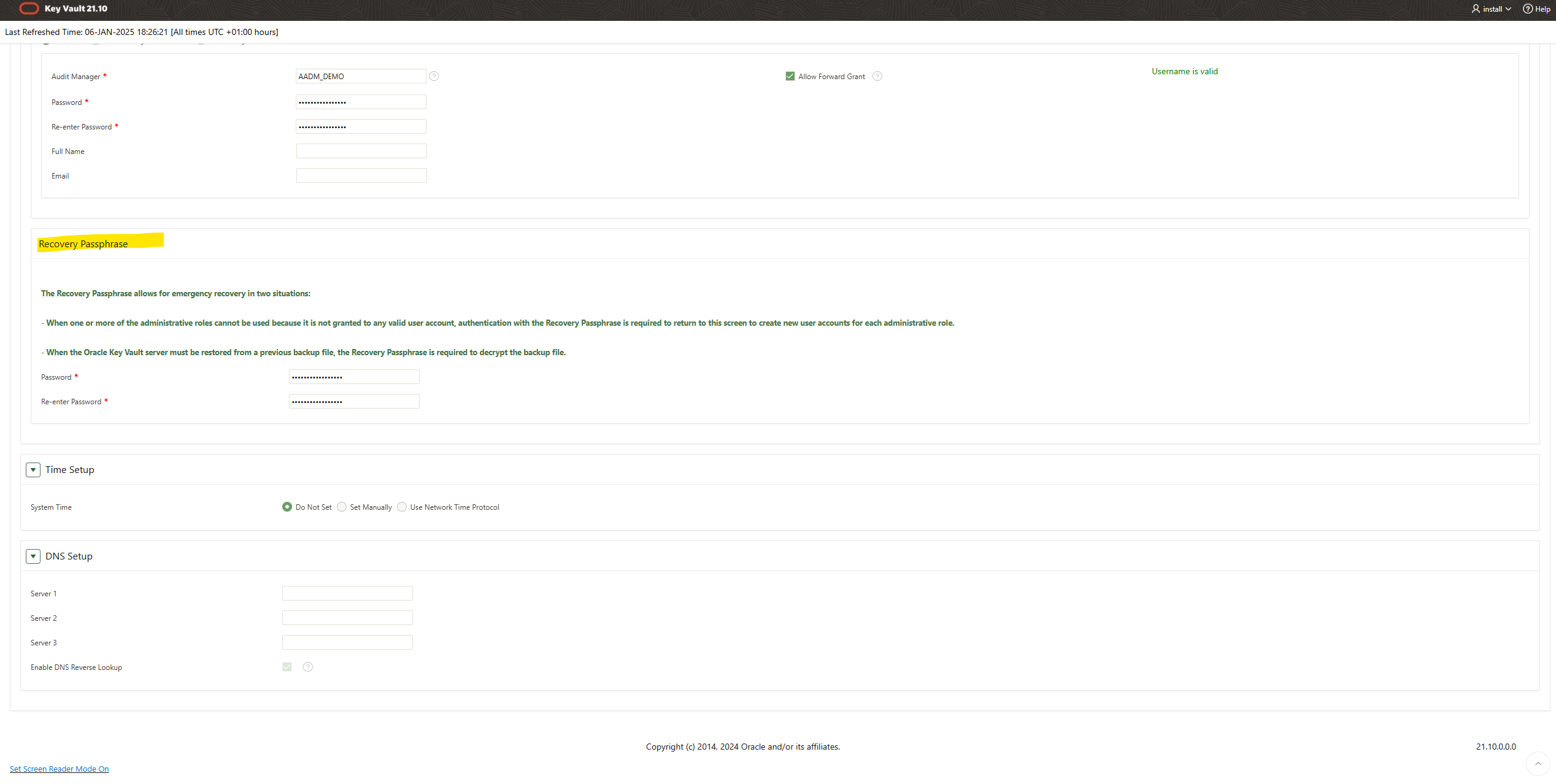
Finally, click on the save button!
Next time you will need to log in with one of the users you have defined before, in this example as follows:
- Key Administrator: KADM_DEMO
- System Administrator: SADM_DEMO
- Audit Manager: AADM_DEMO
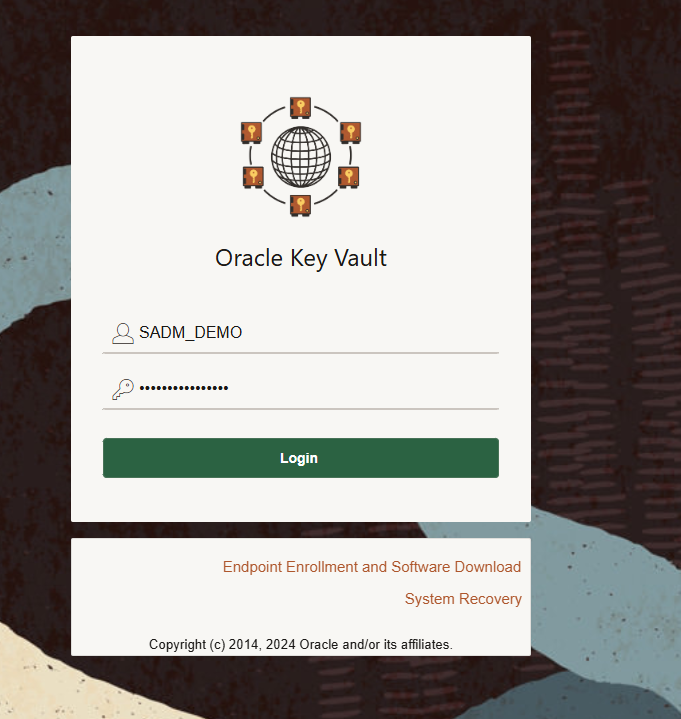
First login attempt will ask for password change:

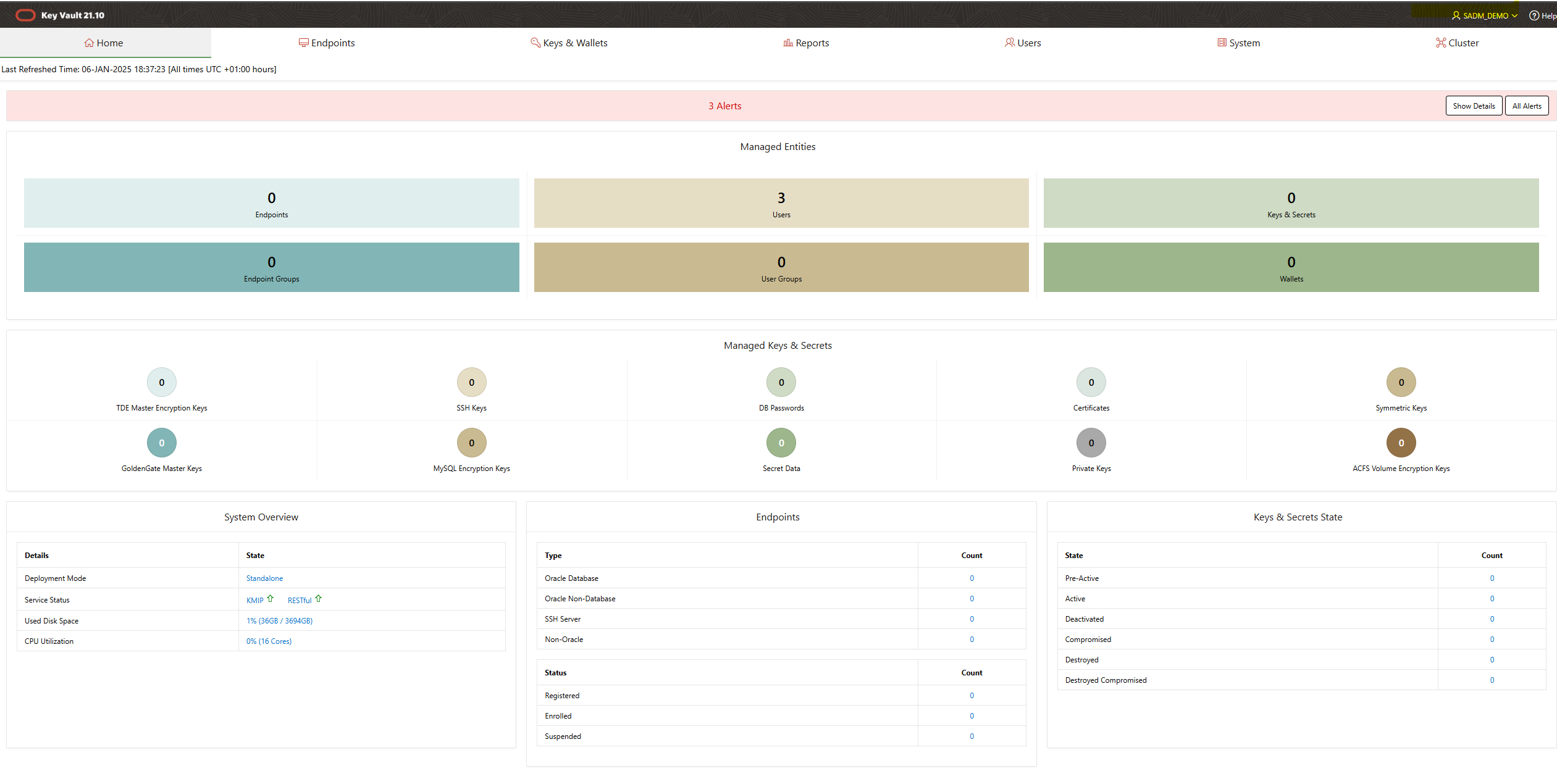
Once you have done you will be in the console, depending of the user the console will have different options according to the role:
How to re-enable SSH authentication
You need to log in to the VM, so how do you do it?
Login into the OKV management console using the system administrator user; in this example, it is SADM_DEMO.
In the console, go to SYSTEM and then SETTINGS, you will see the SSH ACCESS option in the network section, click on it:
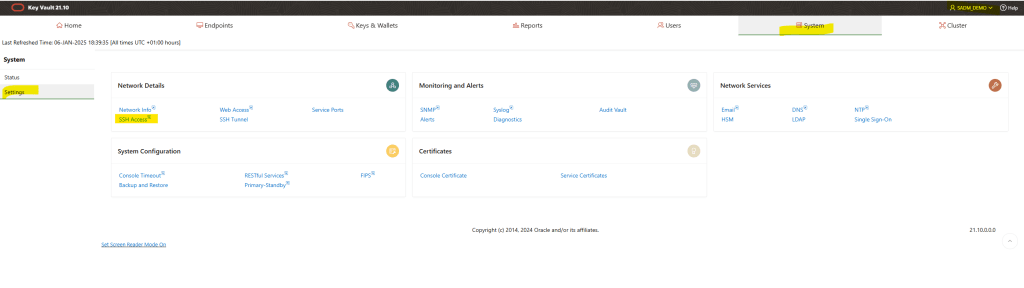
The option will be disabled, you can enable it for some IP address(es) or for all, for the purpose of this demo I will enable it for ALL:
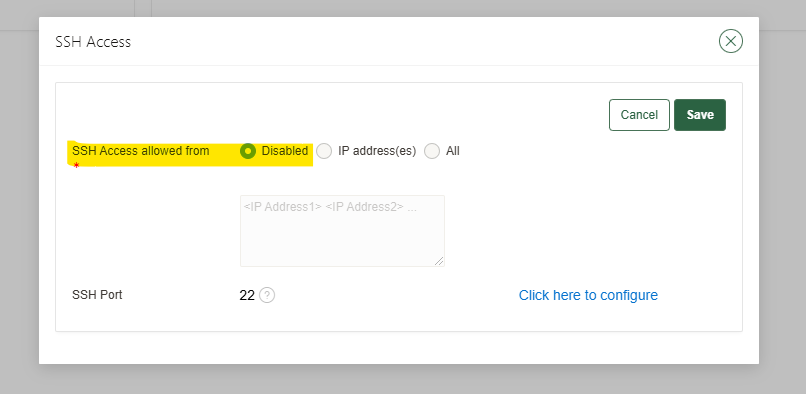
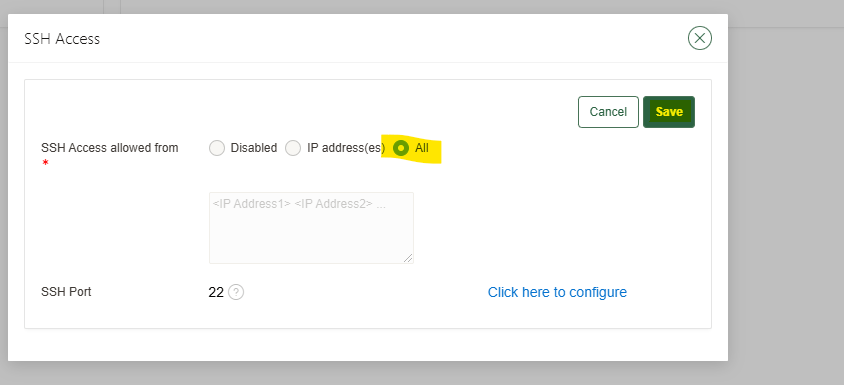
Once selected the option just click and the save button:
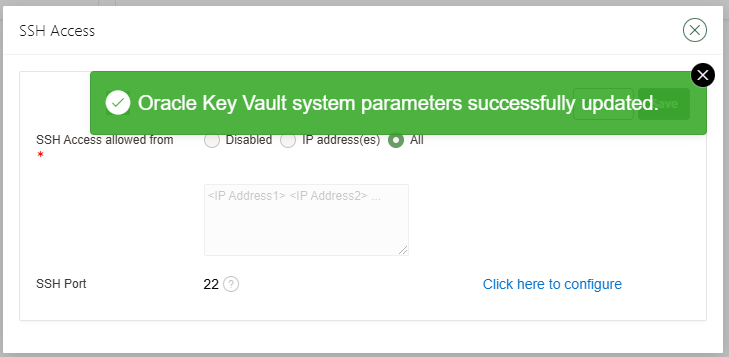
After that, try to login again and voila!
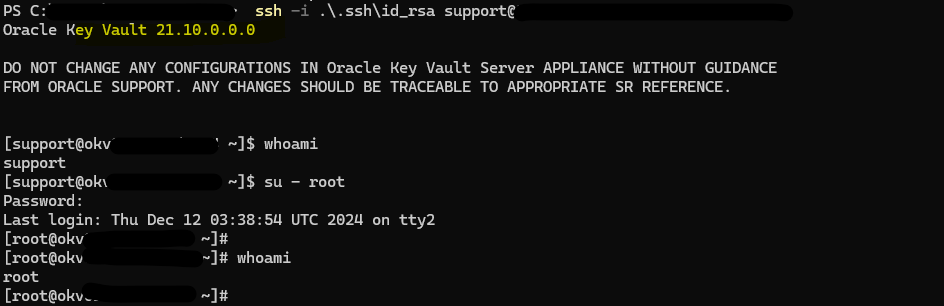
Login will be available for support user, you can su as root if you need to
Wrapping Up: Key Takeaways About Oracle Key Vault
In today’s digital landscape, ensuring robust data security isn’t just a priority—it’s a necessity. Oracle Key Vault (OKV) provides a powerful solution for managing encryption keys, secrets, and certificates, helping organizations overcome modern data protection challenges.
With OKV, you can centralize security management, streamline administrative tasks, and maintain compliance with industry standards—all while safeguarding your most sensitive data.
As data threats continue to evolve, adopting secure and standards-compliant tools like OKV is critical for protecting your organization’s digital assets. Ready to dive deeper? Stay tuned for more insights and tips on leveraging Oracle Key Vault to its full potential!
 DatabaseVerse: Journey into the World of Databases
Leave a comment